


Internet Errors 503, 404, 500 Explained: Causes, Fixes, and SEO Impact (2026 Guide)
Seeing Internet errors 503, 404, or 500 on your website? These HTTP status codes are more than scary numbers:
they affect user trust, conversions, and how search engines crawl and rank your pages. This guide explains what each error means,
how to fix them step-by-step (WordPress, shared hosting, VPS/cloud), and how to reduce long-term SEO damage.
Quick takeaway: Treat 404 as content/navigation hygiene, treat 500 as server/app failure,
and use 503 intentionally for temporary downtime (maintenance) so search engines don’t assume your pages are permanently gone.
Introduction
“Internet Errors” often show up at the worst moment: a campaign launch, a traffic spike, or a migration.
The good news is that most HTTP errors follow predictable patterns, and you can diagnose them quickly with the right workflow.
What HTTP Errors Are
HTTP status codes are messages your server sends to a browser (or a search engine bot) to describe what happened when a URL was requested.
They’re grouped by categories:
- 2xx = success (e.g., 200 OK)
- 3xx = redirection (e.g., 301 moved permanently, 302 found/temporary)
- 4xx = client-side issue (often “page not found” or access problems)
- 5xx = server-side failure (the server couldn’t fulfill a valid request)
Why They Matter for Users & SEO
Users see errors as friction and leave. Search engines see persistent errors as a sign of poor site quality or instability.
The practical consequences: fewer pages crawled, weaker rankings, and worse engagement signals.
What Is a 503 Error?
503 Service Unavailable means the server is reachable, but it can’t handle the request right now.
Think of it as “come back later.”
Common Causes
- Server overload (traffic spikes, resource limits, CPU/RAM exhaustion)
- Planned maintenance (updates, migrations, deployments)
- Application throttling (rate limits, upstream services failing)
- Misconfigured caching/CDN returning a temporary failure
Temporary vs. Critical
- Temporary: appears during maintenance and disappears after fixes; ideally includes a
Retry-Afterheader. - Critical: persists for hours/days or affects many pages—usually a capacity or deployment issue.
What Is a 404 Error?
404 Not Found means the server is working, but the specific URL doesn’t match any existing resource.
This is the most common “Internet Errors” scenario after site changes.
Typical Causes
- Broken internal links (typos, outdated menus, old content references)
- Deleted or moved pages without redirects
- URL structure changes (slug edits, category changes, migrations)
SEO Impact if Not Fixed
- Wasted crawl budget: bots spend time on dead URLs instead of your important pages
- Loss of link equity: backlinks pointing to a 404 stop passing value
- Poor UX: higher bounce rates and lower trust
Rule of thumb: A few 404s are normal. A growing number of 404s on important pages (or pages with backlinks) is not.
What Is a 500 Error?
500 Internal Server Error is a generic “something went wrong” response when the server can’t provide a more specific cause.
Unlike a 404, the URL might be correct—your server/app is failing to generate the page.
Common Causes
- Server misconfiguration (bad .htaccess rules, permission issues)
- PHP / backend errors (fatal errors, memory limits, incompatible versions)
- Database problems (connection failures, corrupted tables)
- Hosting issues (service outages, resource caps, filesystem problems)
SEO Impact of HTTP Errors
Crawl Budget
Search engines allocate limited crawling resources per site. Repeated errors (especially 5xx) can reduce crawl frequency, meaning new content is discovered slower and updates take longer to reflect.
Rankings
Persistent errors on important URLs can lead to deindexing or ranking drops. If bots repeatedly fail to fetch pages, they may treat them as unreliable or no longer available.
User Experience Signals
Errors increase abandonment and reduce engagement. Even if rankings don’t drop immediately, conversions often do.
Fixing errors is often a fast win for both SEO and revenue.
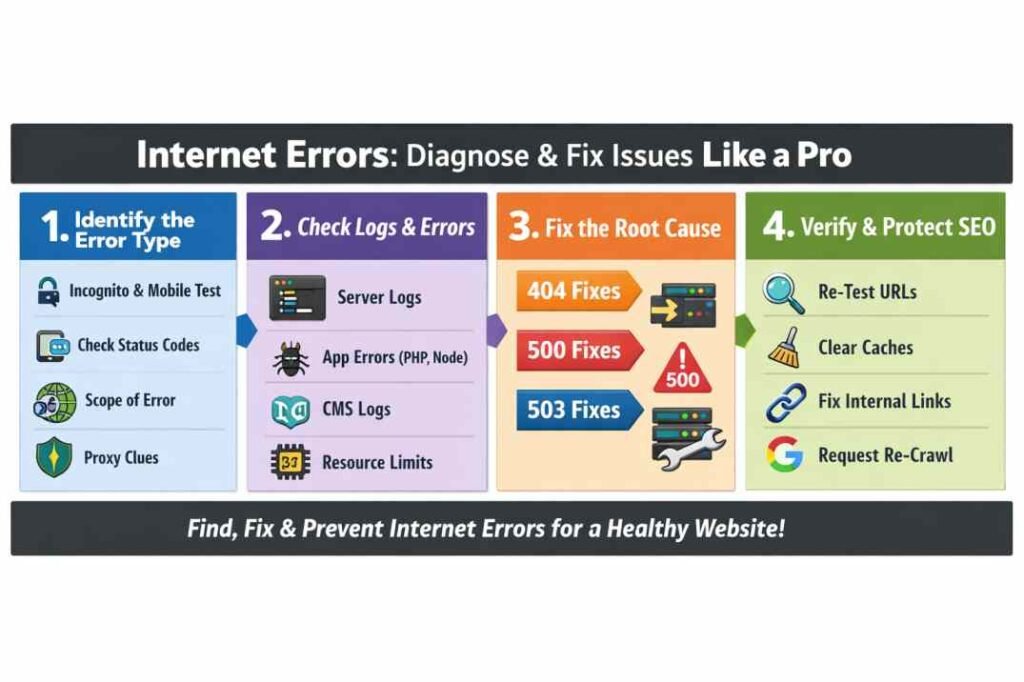
How to fix internet errors 503, 404, and 500 Errors (Step-by-Step)
Step 1 — Identify the Error Type
- Check a few affected URLs in an incognito browser
- Confirm the status code (browser dev tools or an online HTTP checker)
- Note whether it affects one URL or many pages
Step 2 — Check Logs
- Server error logs (Apache/Nginx)
- Application logs (PHP, Node, Python, etc.)
- CMS logs (WordPress debug.log)
Step 3 — Fix the Root Cause
- 404: add redirects or restore content
- 500: fix code/config/plugins
- 503: increase capacity or end maintenance properly
Fixes for WordPress
- 503: disable maintenance mode, clear cache (plugin + server cache), check resource limits, review recent plugin/theme updates.
- 404: check permalink settings (re-save permalinks), fix broken links, create 301 redirects for moved pages, rebuild sitemap.
- 500: disable plugins (one by one), switch theme temporarily, increase PHP memory limit, review .htaccess, enable WP_DEBUG and check logs.
Fixes for Shared Hosting
- Check hosting status page and resource usage (CPU/RAM/IO limits)
- Revert last changes (plugin installs, config edits)
- Ask support for error log excerpts and whether mod_security/firewall blocked requests
- Consider upgrading plan if 503 appears during traffic spikes
Fixes for VPS / Cloud Servers
- 503: check load (CPU/RAM), restart services safely, tune autoscaling, adjust upstream timeouts.
- 500: inspect app errors, dependency issues, permissions, and rollback deployments if needed.
- 404: confirm routing rules, rewrite rules, and CDN origin paths; validate redirects at the edge.
After fixing: re-test key URLs, clear caches, and request re-crawl in your search console (if you use it).
Also update your XML sitemap if pages moved.
Best Practices to Prevent HTTP Errors
Monitoring Tools
- Uptime monitoring (alerts when 5xx appears)
- Error tracking for applications (captures stack traces)
- Regular crawling audits (find broken internal links early)
Redirect Strategies
- Use 301 for permanent moves; keep redirects relevant (avoid sending everything to the homepage)
- Maintain a redirect map during migrations
- Fix internal links instead of relying only on redirects
Maintenance Mode Best Practices
- Use 503 (not 404/500) for planned downtime
- Set a realistic
Retry-Afterheader if possible - Keep maintenance windows short; test on staging before production
FAQ (Schema Ready)
Is a 503 error bad for SEO?
Not necessarily. A short, intentional 503 during maintenance can be SEO-friendly because it signals “temporary.”
The risk comes when 503 persists for too long or happens frequently.
How long can a site show 503?
Ideally minutes to a few hours. The longer it lasts, the more likely bots reduce crawling and users stop trusting the site.
If downtime will be extended, prioritize a stable “maintenance” response and fix capacity fast.
Should I redirect 404 pages?
Redirect only when there’s a close replacement (same intent/topic). Otherwise, keep a helpful 404 page, fix internal links, and remove obsolete URLs from navigation.
Sources: PinterPandai, Mozilla, Pingdom, Microsoft Learn